Browser Extensions
Browserless allows you to upload and use your own browser extensions in your automation sessions. Extensions can be managed through your account dashboard or, for Browserless-managed dedicated deployments, the API and then referenced by name in your launch options.
- A Browserless API token from your account dashboard
- Puppeteer or Playwright installed locally
Extension support is only available when using the Chromium browser. If you don't specify a browser, Chromium is used by default.
Extension Upload
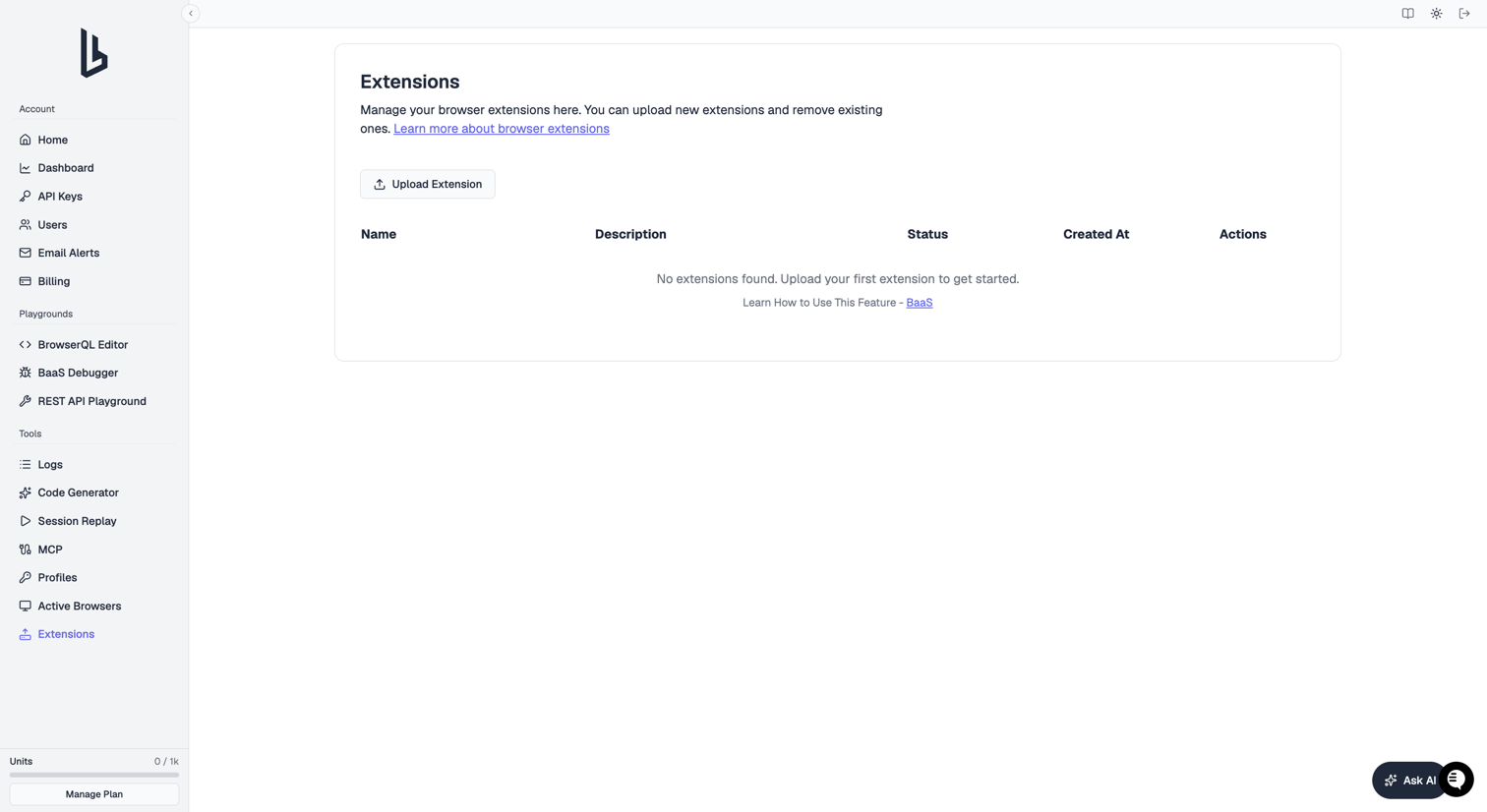
- Navigate to the Extensions section in your account dashboard
- Upload your extension as a ZIP file containing the extension directory (max 100 MB)
- Once uploaded, extensions can be referenced by their assigned name
You can find a demo extension in this link. This extension adds the "Hello from extension" text to the body element of every page, making it easy to verify that your extension is working correctly.
Manage extensions from CI/CD
Browserless-managed dedicated deployments can manage extensions from a build pipeline with an account API token. Fully self-hosted deployments do not expose this account API.
Upload an extension:
: "${BROWSERLESS_TOKEN:?Set BROWSERLESS_TOKEN to your API token}"
: "${BROWSERLESS_API_URL:=https://api.browserless.io}"
: "${EXTENSION_NAME:=ci-extension}"

curl --fail-with-body --silent --show-error --max-time 60 --request POST \
  --url "${BROWSERLESS_API_URL}/extension" \
  --header "Authorization: Bearer ${BROWSERLESS_TOKEN}" \
  --form-string "name=${EXTENSION_NAME}" \
  --form 'description=Uploaded by CI' \
  --form 'extension=@extension.zip;type=application/zip' || exit 1
Store BROWSERLESS_TOKEN as a masked CI secret, and disable shell command
tracing while authenticated commands run so the expanded header is not logged.
Uploading the same name again replaces the existing extension. The replacement
is temporarily unavailable while malware scanning runs, so wait for its status
to become active before starting sessions that depend on it:
This polling function requires Bash and jq:
await_extension() {
  deadline=$((SECONDS + 300))
  while :; do
    remaining=$((deadline - SECONDS))
    ((remaining > 0)) || break
    if ! response=$(curl --fail-with-body --silent --show-error \
      --connect-timeout 10 --max-time "$remaining" \
      --url "${BROWSERLESS_API_URL}/extensions" \
      --header "Authorization: Bearer ${BROWSERLESS_TOKEN}"); then
      [ -z "$response" ] || printf '%s\n' "$response" >&2
      return 1
    fi
    if ! status=$(printf '%s' "$response" | jq --exit-status --raw-output \
      --arg name "$EXTENSION_NAME" \
      'first(.extensions[] | select(.name == $name) | .status) // "missing"'); then
      echo 'Invalid extensions API response' >&2
      return 1
    fi
    case "$status" in
      active) echo 'Extension is active'; return 0 ;;
      pending) ;;
      invalid) echo 'Extension failed malware scanning' >&2; return 1 ;;
      missing) echo "Extension not found: $EXTENSION_NAME" >&2; return 1 ;;
      *) echo "Unexpected extension status: $status" >&2; return 1 ;;
    esac
    ((SECONDS + 5 < deadline)) || break
    sleep 5
  done
  echo 'Timed out waiting for extension scanning' >&2
  return 1
}

await_extension || exit 1
GET /extensions returns each extension's name, description, status, and
createdAt. A new or replaced extension starts as pending and becomes
active after it passes scanning. This example checks every five seconds for
up to five minutes and fails the pipeline if scanning rejects the extension or
does not finish in time.
Delete an extension by name when it is no longer needed:
curl --fail-with-body --silent --show-error --max-time 60 --request DELETE \
  --url "${BROWSERLESS_API_URL}/extension/${EXTENSION_NAME}" \
  --header "Authorization: Bearer ${BROWSERLESS_TOKEN}" || exit 1
Extension Launch Parameter
Use the extensions parameter in your launch options to load extensions:
- Puppeteer
- Playwright CDP
- BQL
import puppeteer from "puppeteer-core";

// Define launch options
const launchArgs = {
  extensions: ['extension_name_01', 'extension_name_02']
};

// Create query parameters
const queryParams = new URLSearchParams({
  token: 'YOUR_API_TOKEN_HERE',
  timeout: '180000',
  launch: JSON.stringify(launchArgs)
});

const browser = await puppeteer.connect({
  browserWSEndpoint: `wss://production-sfo.browserless.io?${queryParams.toString()}`,
});
const page = await browser.newPage();
import playwright from "playwright";

// Define launch options
const launchArgs = {
  extensions: ['extension_name_01', 'extension_name_02']
};

// Create query parameters
const queryParams = new URLSearchParams({
  token: 'YOUR_API_TOKEN_HERE',
  timeout: '180000',
  launch: JSON.stringify(launchArgs)
});

const browser = await playwright.chromium.connectOverCDP(
  `wss://production-sfo.browserless.io?${queryParams.toString()}`
);

// Extensions are loaded in the default context
// Always use the default context to access extensions
const context = await browser.contexts()[0];
const page = await context.newPage();
# You need to add the launch argument to the url
# URL: https://production-sfo.browserless.io/chromium/bql?token=YOUR_TOKEN&launch={"extensions":["test_extension"]}
# Encoded URL: https://production-sfo.browserless.io/chromium/bql?token=YOUR_TOKEN&launch=%7B%22extensions%22%3A%5B%22test_extension%22%5D%7D

curl --request POST \
  --url 'https://production-sfo.browserless.io/chromium/bql?token=YOUR_TOKEN&launch=%7B%22extensions%22%3A%5B%22test_extension%22%5D%7D' \
  --header 'Content-Type: application/json' \
  --data '{"query":"mutation extensions {\n  goto(url: \"https://checkip.amazonaws.com/\", waitUntil: networkIdle) {\n    status\n  }\n  html(selector: \"body\") {\n    html\n  }\n}","variables":{},"operationName":"extensions"}'
Extensions are loaded in the default context only. When using Playwright, you must create your pages from the default context (browser.contexts()[0]) to access the loaded extensions. Creating new contexts will not have access to the extensions.
Extension Requirements
- ZIP structure: Upload extensions as ZIP files. The
manifest.jsonmust sit at the ZIP root directory, not nested inside a subdirectory. A ZIP containingmy-extension/manifest.jsonfails; it must bemanifest.jsonat the top level. - Required manifest fields:
manifest.jsonmust includename,version, andmanifest_version. Missing any of these returns an upload error. - Extension naming: Names must match the pattern
[a-zA-Z0-9_-]and be 1 to 99 characters long. - File size: Maximum 100 MB per extension.
- Account limits: Maximum 10 extensions per account. Uploading an existing name replaces it without consuming another slot.
- Malware scanning: Uploaded extensions go through automated malware scanning before becoming available.
- Supported routes: Extensions only work on
/chromiumand/(the default path). Paths containingchrome,edge, orplaywrightblock extensions. Using an unsupported path returns:"Extensions are only supported for CDP-based libraries with Chromium".
Extensions with Authenticated Proxies
Extensions require CDP mode and the default browser context. Authenticated proxies in Playwright typically use browser.newContext({ proxy }), which creates a new context where extensions are not available. To use both together, pass the proxy server as a Chrome launch argument and handle authentication through the CDP Fetch domain.
import playwright from "playwright-core";

const launchArgs = {
  extensions: ["my_extension"],
};

const queryParams = new URLSearchParams({
  token: "YOUR_API_TOKEN_HERE",
  "--proxy-server": "proxy-host:port",
  launch: JSON.stringify(launchArgs),
});

const browser = await playwright.chromium.connectOverCDP(
  `wss://production-sfo.browserless.io?${queryParams.toString()}`
);

const context = browser.contexts()[0];
const page = context.pages()[0] || (await context.newPage());

// Enable proxy authentication via CDP Fetch domain
const client = await context.newCDPSession(page);
await client.send("Fetch.enable", {
  handleAuthRequests: true,
  patterns: [{ urlPattern: "*" }],
});

client.on("Fetch.authRequired", async (event) => {
  await client.send("Fetch.continueWithAuth", {
    requestId: event.requestId,
    authChallengeResponse: {
      response: "ProvideCredentials",
      username: "proxy_user",
      password: "proxy_pass",
    },
  });
});

client.on("Fetch.requestPaused", async (event) => {
  await client.send("Fetch.continueRequest", {
    requestId: event.requestId,
  });
});

await page.goto("https://example.com");
await browser.close();
This pattern keeps everything in the default context where extensions are loaded, while routing traffic through the authenticated proxy. For a deeper comparison of connection methods, see connect vs connectOverCDP.
Best Practices
- Test Locally First: Always test your extension in a local Chrome browser before uploading
- Keep Extensions Small: Larger extensions increase session startup time
- Use Descriptive Names: Give your extensions clear, descriptive names for easier management
- Version Control: Consider versioning your extensions if you make frequent updates
FAQ & Troubleshooting
Can I launch an uploaded extension from the dashboard or the BrowserQL IDE?
No. The dashboard's Extensions page uploads and deletes extensions, and the BrowserQL IDE has no setting for the launch parameter. To load an extension, pass launch={"extensions":["your_extension"]}, URL-encoded, on the connection URL from your own code or an HTTP client, as shown in Extension launch parameter.
My extension is not loading
Verify the extension name matches exactly what is shown in your dashboard. Check that the extension ZIP file contains the proper directory structure and that the extension is compatible with Chromium.
Sessions are taking too long to start
Reduce the number of extensions loaded simultaneously and check extension file sizes. Sessions with extensions take more time to start because the extension is loaded in real time. The startup time increases with the number and size of extensions.
My extension is not working as expected
Test the extension in a local Chrome browser first. Check the browser console for any extension errors and verify the extension's manifest.json is valid.
Why am I getting a 403 Forbidden error?
Your API token is missing or expired. Pass it as a ?token= query parameter in the WebSocket or HTTP URL. Verify the token in your account dashboard.
My script works locally but fails on Browserless
Local browser settings may differ from the Browserless environment. Use launch parameters to match your local setup (viewport, user agent, timezone). See launch parameters for the full list.