Session Replay
Session Replay captures browser sessions as interactive replays viewable in your Browserless dashboard. It uses RRWeb technology to record DOM mutations, mouse movements, clicks, scrolling, keyboard input, console logs, and network requests. The result is a lightweight, high-fidelity recording you can play back at any speed. This feature requires a paid plan and is not to be confused with Screen Recording, which captures WebM video files returned directly to your code.
To enable it, add replay=true to your WebSocket connection string. Recording starts automatically on connect and stops when you call Browserless.stopSessionRecording or close the browser.
- A Browserless account with a paid plan
- A valid API token
- Node.js installed (for the code examples below)
- Install the required npm package:
npm install puppeteer-core
Recording a Session
Connect to Browserless with Replay Enabled
Connect to Browserless and enable session replay by adding the
replay=truequery parameter to your connection URL. Recording starts automatically upon connection.- Puppeteer
- Playwright
import puppeteer from 'puppeteer-core';

const browser = await puppeteer.connect({
  browserWSEndpoint: `wss://production-sfo.browserless.io?token=YOUR_API_TOKEN_HERE&timeout=300000&headless=false&replay=true`,
});
import { chromium } from 'playwright-core';
const browser = await chromium.connectOverCDP(
'wss://production-sfo.browserless.io?token=YOUR_API_TOKEN_HERE&timeout=300000&headless=false&replay=true'
);Perform Actions to Record
Create a page, navigate to your target website, and perform the actions you want to record. The recording captures all interactions on this page.
- Puppeteer
- Playwright
const page = await browser.newPage();
await page.goto("https://www.example.com", { waitUntil: "networkidle0" });

const sleep = (ms) => new Promise((res) => setTimeout(res, ms));

// Example: Random mouse movements for demonstration
const randomMouseMovements = async (page, moves = 20) => {
  const viewport = page.viewport() || { width: 1280, height: 720 };
  for (let i = 0; i < moves; i++) {
    const x = Math.floor(Math.random() * viewport.width);
    const y = Math.floor(Math.random() * viewport.height);

    await page.mouse.move(x, y, {
      steps: 5 + Math.floor(Math.random() * 10),
    });
    await sleep(100 + Math.random() * 300);
  }
};

await randomMouseMovements(page, 2);
await sleep(6000);
const [context] = await browser.contexts();
const page = await context.newPage();
await page.goto("https://www.example.com", { waitUntil: "networkidle" });
const sleep = (ms) => new Promise((res) => setTimeout(res, ms));
// Example: Random mouse movements for demonstration
const randomMouseMovements = async (page, moves = 20) => {
const viewport = page.viewportSize() || { width: 1280, height: 720 };
for (let i = 0; i < moves; i++) {
const x = Math.floor(Math.random() * viewport.width);
const y = Math.floor(Math.random() * viewport.height);
await page.mouse.move(x, y);
await sleep(100 + Math.random() * 300);
}
};
await randomMouseMovements(page, 2);
await sleep(6000);Stop Recording and Clean Up
Create a CDP session, stop the session recording, and close the browser connection. When you call
Browserless.stopSessionRecording, the recorded data uploads automatically to your Browserless account for viewing in the dashboard.- Puppeteer
- Playwright
const cdp = await page.createCDPSession();

// Stop the recording - data uploads automatically
await cdp.send("Browserless.stopSessionRecording");
await browser.close();
const cdpSession = await context.newCDPSession(page);
// Stop the recording - data uploads automatically
await cdpSession.send("Browserless.stopSessionRecording");
await browser.close();Alternative: Close Without Explicit StopIf you close the browser without calling
Browserless.stopSessionRecording, the recording still saves automatically. Explicitly stopping the recording ensures all data flushes before disconnection.
What Gets Recorded
Session Replay captures the following data:
DOM Events: All visual changes to the page including element mutations, style changes, and layout shifts, recorded using RRWeb's snapshot technology.
User Interactions: Mouse movements, clicks, scrolling, and keyboard input with precise timing for accurate playback.
Console Logs: All console output (log, warn, error, info) with timestamps, making it easy to correlate visual events with application state.
Network Requests: HTTP requests and responses, helping you understand data flow during the session.
Viewing Replays
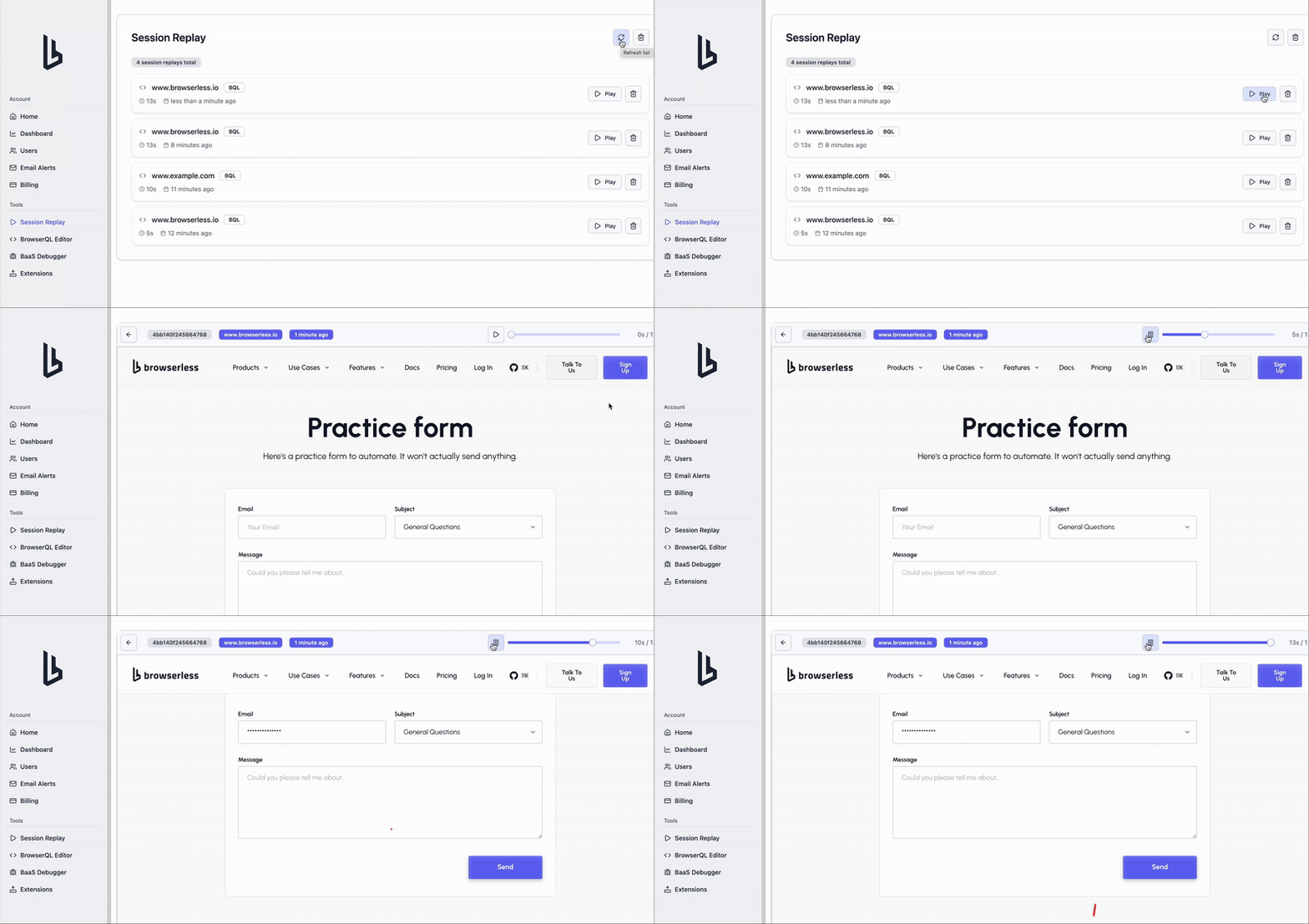
After your session ends, the replay uploads automatically to your Browserless dashboard. Navigate to the Session Replay section to find your recorded sessions. Each replay includes a timeline showing all captured events, console logs, and network activity. You can play back the session at different speeds and jump to specific moments.
For BrowserQL-specific Session Replay documentation, see Session Replay with BQL.
Navigation Handling
Session Replay handles page navigations automatically within your session. When the browser navigates to a new page, the recording system reinjects the RRWeb recorder and continues capturing events. All data from multiple page navigations aggregates into a single replay, giving you the complete user journey across different pages.
Limitations
- Cross-origin iframes may not be fully captured due to browser security restrictions.
- Very long sessions with high DOM activity may produce large replay files.
- Dynamic content loaded via WebGL or canvas may not reproduce perfectly in playback.